
Guide
How to Check Your PC for USB 3.2 Gen 2x2 Support
Check the exact port in your computer’s manual for USB 3.2 Gen 2x2. Connect a compatible SSD directly with its supplied cable, then verify the negotiated speed if your hardware tools report it.
Who this helps: For laptop and desktop users checking whether a USB 3.2 Gen 2x2 portable SSD can operate at full interface speed. This guide uses manufacturer specifications and illustrative transfer-rate calculations.
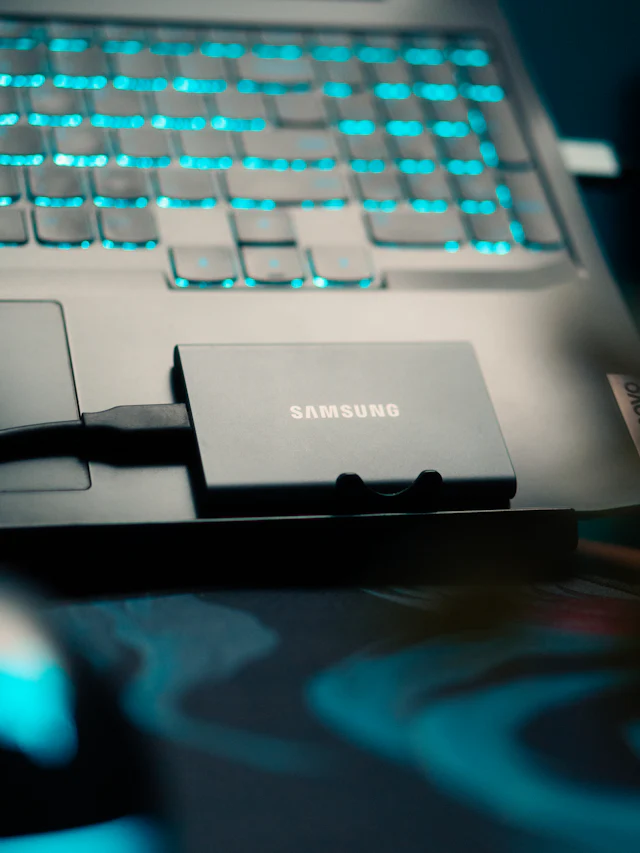
Find the exact computer and port in the manual
Look up the computer’s full model number and open the manufacturer’s port specifications. On a custom desktop, start with the exact motherboard and hardware revision. For a plug-in USB controller, use the card manual. Find the entry for the specific physical port and record its stated USB data modes. Treat a generic listing that only says USB-C as unresolved.
USB-IF describes USB 3.2 as covering 5, 10 and 20 Gbps rates. Its Gen 2x2 label refers to the two-lane 20 Gbps version. Look for that label or a statement explicitly identifying 20 Gbps over USB 3.2. The host specification should name the mode as well as the connector shape when you are buying for a particular drive.
Check the rear panel and front connector separately
Match the port description to a diagram rather than assuming adjacent USB-C ports offer identical capabilities. Desktop documentation can list an internal motherboard header separately from physical rear-panel ports. If Gen 2x2 is listed for an internal header, confirm that a compatible front-panel connection on your case reaches that header.
For example, the ASUS ROG Maximus Z790 Extreme manual identifies a 20 Gbps Gen 2x2 front-panel connector on the board. A buyer should distinguish that description from the specifications for the rear ports. On a laptop, draw the same distinction between left-side, right-side and dock ports by matching the illustrations.
Verify the entire connection to the SSD
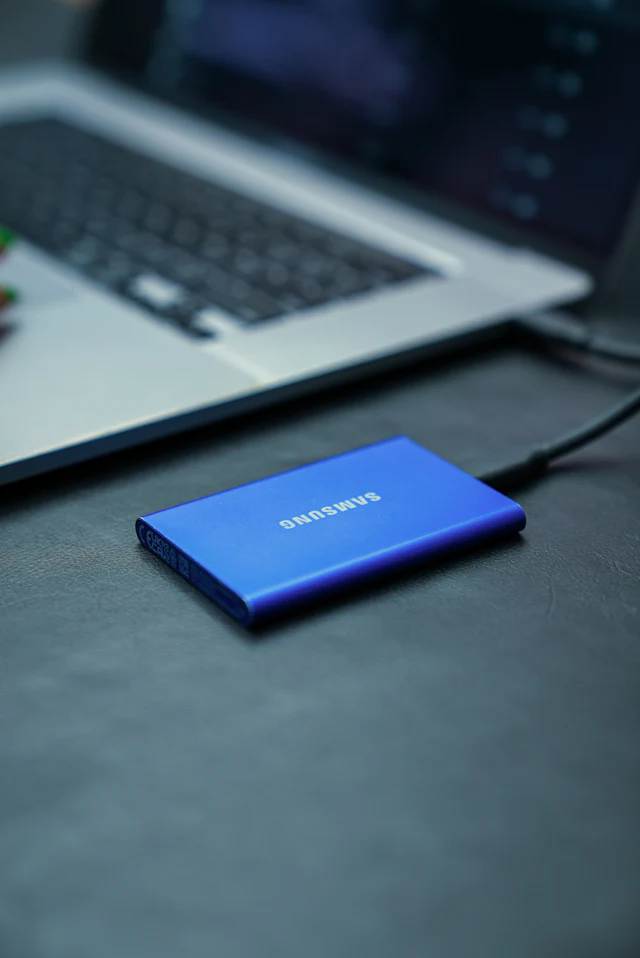
Start with the SSD connected directly to the documented host port using the manufacturer’s supplied USB-C cable. Read the drive’s specifications to confirm that it uses Gen 2x2. For example, the Samsung T9 data sheet lists USB 3.2 Gen 2x2 and a sequential read figure of up to 2,000 MB/s under its test conditions.
Leave hubs, passive extensions and docks out of the initial check. If you want to use one later, look up the dock’s downstream USB data mode for the exact socket. A dock can connect at one speed to the host and offer different modes at its accessory ports. A successful transfer through the dock shows there is a connection, so check the actual negotiated mode or compare measured transfer results before concluding that the dock supports the drive at full speed.
Use a transfer check to spot a slower link
Check the active link speed in a hardware utility if it is exposed, then use a non-destructive large-file read or a storage benchmark as a cross-check. Write down the exact drive, cable and host port you used. Close unrelated tasks that may use storage or the dock. If your utility only displays the controller name or the device’s advertised maximum, treat that information as a specification and look for a negotiated speed readout.
For a rough comparison, 10 Gbps is 1,250 MB/s and 20 Gbps is 2,500 MB/s before overhead. At 5 Gbps the equivalent is 625 MB/s before overhead. Real file and benchmark results can be lower. Suppose a direct read result is 1650 MB/s but it falls to 875 MB/s through a dock. That is a useful reason to check the dock’s downstream mode and cable. It does not prove which component caused the drop.
Decide if Gen 2x2 matters for your workflow
Base your buying decision on the computer and connection you actually use. If the port documentation cannot confirm Gen 2x2 and the vendor cannot clarify, budget your transfer times around the lower confirmed mode. If the drive will move between a camera, laptop and desktop, check all three. Different workflows may hit different limits even when they use the same SSD.
As an illustrative calculation, copying 2400 MB at a sustained 1200 MB/s would take about two seconds, excluding startup and other delays. The same data at 600 MB/s would take about four seconds. For frequent large transfers the difference can matter. For mostly small documents, weigh capacity, backup workflow and cross-device compatibility alongside speed.
FAQ
Does a USB4 or Thunderbolt port guarantee USB 3.2 Gen 2x2?
Check for explicit support for the USB 3.2 two-lane mode on that port. A USB4 or Thunderbolt headline speed describes another capability and cannot establish how an individual Gen 2x2 drive connects. The host’s compatibility documentation or a reported negotiated speed for the attached drive gives you a better answer.
Will a Gen 2x2 drive still work on a slower port?
USB-IF describes USB 3.2 as backward compatible, with devices operating at the lowest common capability. Check the drive’s requirements and use a suitable cable. If the host and drive share a slower supported USB mode, expect that connection to cap the drive’s interface speed.
Why does a speed test vary when I use the same port?
A file transfer also depends on the storage at the other end, whether the data is cached, workload size and what else is using the system. Repeat the same test using the same cable and direct connection before comparing results. A benchmark provides context for diagnosis, while explicit link information is the better way to identify the negotiated speed.
Sources
- USB-IF USB 3.2 specification overview — checked 2026-11-20
- ASUS ROG Maximus Z790 Extreme user manual — checked 2026-11-20
- Samsung Portable SSD T9 technical data sheet — checked 2026-11-20